
If users are required to review and manage items, they will require access to the Dataverse/Power Apps via the application of roles in Power Platform admin center.
These roles can be managed via a Microsoft Entra ID security group or on a per-user basis.
If you’ve previously created a security group for ChangePilot users, please follow the steps below under ‘Security Group’. If not, create a security group via Microsoft Entra, or follow the steps under ‘User’, for per user assignment.
All users of the ChangePilot App require a Power Apps license.
Grant Access via a Microsoft Entra ID Security Group (Recommended)
- Navigate to the Power Platform Admin Center and to your the ChangePilot environment. On the right-hand side in the Access pane, click ‘See all’ under Teams.
- Click ‘Create Team’. Enter Team name and select the default Business unit. Set Administrator to yourself or another administrator.
- For Team Type, select Microsoft Entra ID Security Group. Under Group Name, search and select your previously created security group.
- Select Members under Membership Type. Click Next.
- Select both the CP User and Basic User Click Save.
Grant Access on a Per-User Basis
- Navigate to the Power Platform Admin Center and to your new environment. On the right-hand side in the Access pane, click ‘See all’ under Users.
- Scroll and find the user you wish to grant access. Click to next to the name to select the relevant user(s) then click ‘Manage security roles’.
- Select the CP User and Basic User roles and click ‘Save’
Sharing the ChangePilot App with Colleagues
If you have created a ChangePilot team in Microsoft Teams, a channel tab can be a good way to provide easy access to the ChangePilot App.
- First, find the URL for your instance of the ChangePilot App. Go to make.powerapps.com, go to the solution, find ‘Apps’, click the ellipses (three dots) and ‘Play’.
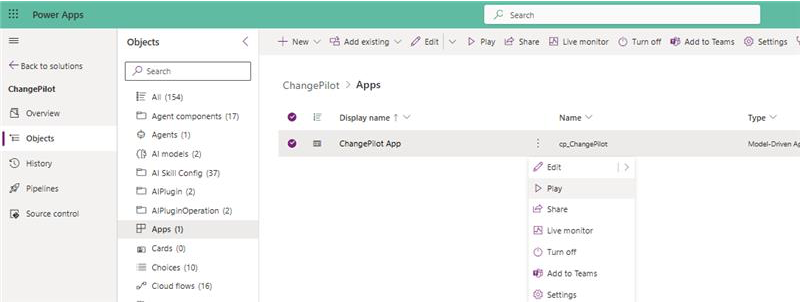
- You are looking to extract the URL of the app, but only up to the point at the end of the app ID.
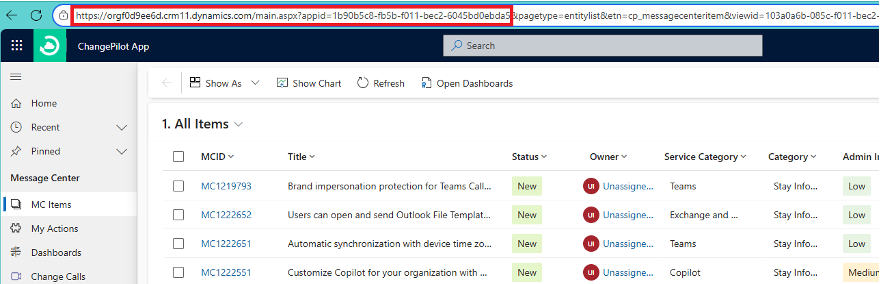
And example URL would be: https://orgf0d9ee6d.crm11.dynamics.com/main.aspx?appid=1b90b5c8-fb5b-f011-bec2-6045bd0ecda5 - Copy the URL and navigate to Microsoft Teams.
- In your General/Home channel within the ChangePilot team, click ‘+ Add tab’.
- Choose ‘Apps’ and search for the ‘Website’ tab type. In many tenants, the Website tab type is not shown in the default list. Searching for ‘website’ or ‘URL’ exposes it.
- Paste your app URL when prompted to create the tab. Clicking on the tab will now new-window to the ChangePilot App.