
Before you start: an administrator authorised to manage users, teams and security roles in the intended ChangePilot environment must make these changes. Naming someone as a workflow recipient does not grant app access.
If users are required to review and manage items, they will require access to the Dataverse/Power Apps via the application of roles in Power Platform admin center.
These roles can be managed via a Microsoft Entra ID security group or on a per-user basis.
If you’ve previously created a security group for ChangePilot users, please follow the steps below under ‘Security Group’. If not, create a security group via Microsoft Entra, or follow the steps under ‘User’, for per user assignment.
Users need an appropriate Power Apps entitlement for this Dataverse app. Have your licensing administrator confirm the qualifying licence and environment access against the current deployment pack; do not assume a Microsoft 365 licence alone is sufficient.
Grant Access via a Microsoft Entra ID Security Group (Recommended)
- Navigate to the Power Platform Admin Center and to your ChangePilot environment. On the right-hand side in the Access pane, click ‘See all’ under Teams.
- Click ‘Create Team’. Enter Team name and select the default Business unit. Set Administrator to yourself or another administrator.
- For Team Type, select Microsoft Entra ID Security Group. Under Group Name, search and select your previously created security group.
- Select Members under Membership Type. Click Next.
- Select both the CP User and Basic User Click Save.
Grant Access on a Per-User Basis
- Navigate to the Power Platform Admin Center and to your ChangePilot environment. On the right-hand side in the Access pane, click ‘See all’ under Users.
- Scroll and find the user you wish to grant access. Click to next to the name to select the relevant user(s) then click ‘Manage security roles’.
- Select the CP User and Basic User roles and click ‘Save’
Sharing the ChangePilot App with Colleagues
If you have created a ChangePilot team in Microsoft Teams, a channel tab can be a good way to provide easy access to the ChangePilot App.
- First, find the URL for your instance of the ChangePilot App. Go to make.powerapps.com, go to the solution, find ‘Apps’, click the ellipses (three dots) and ‘Play’.
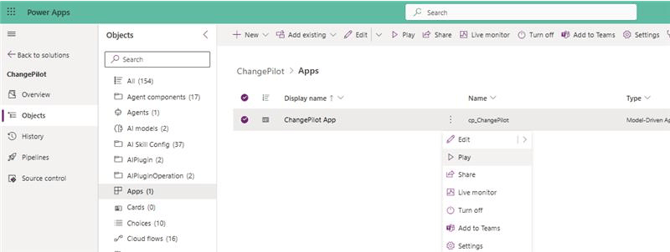
Use your own environment and app ID. Placeholder example: https://YOUR-ENVIRONMENT.crm.dynamics.com/main.aspx?appid=YOUR-APP-ID. Do not use another organisation’s app link.
- Copy the URL and navigate to Microsoft Teams.
- In your General/Home channel within the ChangePilot team, click ‘+ Add tab’.
- Choose ‘Apps’ and search for the ‘Website’ tab type. In many tenants, the Website tab type is not shown in the default list. Searching for ‘website’ or ‘URL’ exposes it.
- Paste your app URL when prompted to create the tab. Clicking on the tab will now new-window to the ChangePilot App.
After saving, have a representative user open the intended app and check the items and actions they need. See access troubleshooting if the result differs.
Documentation reviewed: 12 November 2026.