
Applies to: Dataverse-based ChangePilot Enterprise. Older SharePoint/List and canvas-app installations use separate legacy instructions.
Who this is for: an administrator with permission to import solutions into the ChangePilot environment. You need access to the release package and the relevant connections.
Before you start
- Confirm the tenant, environment and installed ChangePilot solution version. Read the release notes and check the version in the package you will import.
- Follow your organisation’s change-control and backup arrangements. Where you maintain a test environment, validate the update there before production.
- Record customer-specific flows, tags, role recipients, connections and environment-variable Current Values that matter to your deployment. Keep customer assets in the Configuration solution.
- Read managed and unmanaged solution guidance. Unmanaged customisations can affect how an update appears or behaves; verify them after import.
Import the managed solution
- Open Power Apps, select the intended ChangePilot environment and go to Solutions.
- Obtain the current ChangePilot managed-solution package. Keep it as a ZIP file for import.
- Select Import solution, browse to the package and select Next.
- Check the incoming and installed versions. Obtain the supported import/upgrade choices for your starting version from the current deployment pack or deployment contact, including the treatment of unmanaged customisations and whether intermediate versions are required. If those choices are unclear, resolve them before importing; do not select an overwrite option as a trial fix.
- Review connection references. Resolve required connection updates using the intended accounts.
- Review environment variables. Preserve existing Current Values unless the release instructions require a change; complete any newly required values.
- Select Import and monitor the result. Record any error details before taking further action.
Do not uninstall the existing managed solution as an update step. If import fails, inspect the failure details or contact support rather than repeatedly reimporting or removing components.
Validate the update
A successful import is the start of validation. Check:
- The installed solution version matches the intended package.
- A representative user can open the app and access the expected items.
- Role recipients, service owners, teams and configuration values remain correct.
- Compare flow on/off states with the pre-update record. Required flows remain enabled, intentionally disabled flows remain off, and CP014/CP015 do not run conflicting assignment policies. Check connection references and an appropriate flow run.
- Important custom flows, tags still produce the intended result.
- New dashboards or features listed for the release appear with the expected access.
- A sample item’s notes, actions and status can be saved and read back.
Reopen the app and refresh relevant pages before comparing results. Agree any notification test with its recipients, since running a flow can send real messages.
If a customisation or feature is missing
Capture the version, component, import result and before/after behaviour. An administrator can inspect relevant solution layers, configuration and flow runs. Avoid removing unmanaged layers or overwriting customer configuration as a trial fix.
Use the troubleshooting checklist and contact support@changepilot.cloud with the evidence.
Where to find the import controls

Import: in the Solutions toolbar, select Import solution beside New solution.
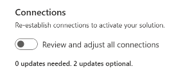
Connections: review the connections requested by the package and resolve required updates. The exact controls can vary with the Power Apps import experience.
Before import, record the current on/off state of each configured flow, including optional auto-close and assignment flows. After import, compare with that record; an update should not silently change your agreed operating policy.
Documentation reviewed: 12 November 2026.