
Whilst our recommended practice is to assess all incoming Message Center items, there may be scenarios where it's not appropriate to monitor particular service categories. You can choose to receive new MC items with the status 'closed' rather than 'new' for service categories you might be licensed for but do not use and are irrelevant for your organisation. When this happens, items will also get the tag 'auto-closed' to aid filtration of manual vs automatically closed items.
To configure receipt of new items as 'closed' for a service category:
- Navigate to make.powerapps.com and ensure you are in the environment where the ChangePilot solution is.
- Open the ChangePilot solution.
- In the left-hand pane, find and select 'Cloud flows'.
- Open the CP003 - 'Autoclose X Product - (Viva Testing)' or 'CP003 Autoclose Service' flow
- Click 'Save As' and give the flow a new name. For example, if you are looking to auto-close the Dynamics service category, you could call the new flow 'Autoclose Service Category - Dynamics'.
- Once the new flow is saved, you will not be redirected straight to it. Instead, navigate back to make.powerapps.com and in the left hand pane, find and select 'Flows'.
- Open your new flow.
- Click 'Edit' in the top ribbon and expand the first action 'When a row is added, modified or deleted'.
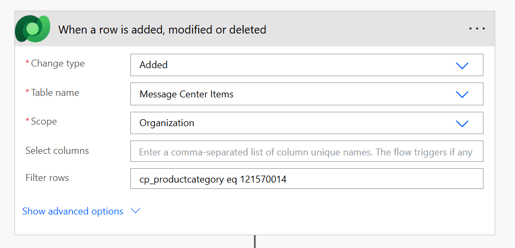
- You are looking to replace the entire value currently in the 'Filter rows' section with the appropriate string from this table:
Service Category Value for 'Filer row' section Copilot cp_productcategory eq 121570001 Dynamics
cp_productcategory eq 121570002 Exchange and Outlook cp_productcategory eq 121570003 Graph and PowerShell cp_productcategory eq 121570005 Identity cp_productcategory eq 121570006 Microsoft 365 cp_productcategory eq 121570007 Microsoft 365 Apps cp_productcategory eq 121570008 OS and Devices cp_productcategory eq 121570009 Planner and Project cp_productcategory eq 121570010 Power Platform cp_productcategory eq 121570011 Purview cp_productcategory eq 121570012 Security cp_productcategory eq 121570013 SharePoint and OneDrive cp_productcategory eq 121570014 Teams cp_productcategory eq 121570015 Viva cp_productcategory eq 121570016 - Click 'Save'.
- Click the back arrow to navigate back to the 'Flows' list.
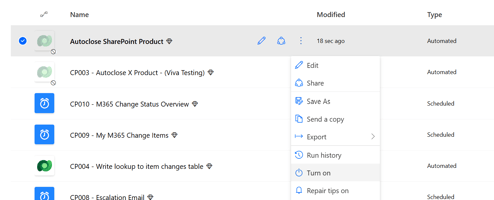
- Find your new flow, select he more options button (three vertical dots) and select 'Turn on' to turn on your flow.
- New items arriving in ChangePilot with the specified service category will now automatically set status = closed and apply an 'auto-close' tag. Nothing will happen to existing items in ChangePilot with the same service category. You can filter your 'All Items' list for items with this service category and edit the status en masse to 'Closed' if you wish.