-
- Navigate to the Power Platform admin center.
- On the left hand menu, select 'Manage' and select your ChangePilot environment.
- In the left-most card 'Access', select 'See all' under 'Teams'.
- Click 'Create team'
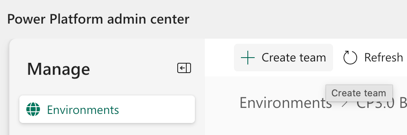
- Name the the team and add a description as appropriate
- Set the business unit to the default unit (starts org) and administrator to yourself. Set the team type to Owner. Click ‘Next’.
- Select the users via AD look up to be members of the team. Please note users must have a Power Apps licence to be found in the look up.
- Selection the appropriate role e.g. 'CP User'
- Click 'Save' and confirm.
- You can now use this Team for service category ownership and automated item assignment. For more information on how to configure these ChangePilot roles, see: How do I configure assigned roles and service category owners in ChangePilot?
Validate access and ownership
Owner teams can own Dataverse records; access teams serve a different purpose. Review the roles and membership with your Power Platform administrator. A licence alone does not establish all required permissions or make a user available in every lookup. Members receive cumulative privileges from their own roles and their teams. See Microsoft’s Dataverse security guidance and the app-access guide.
Check the ownership guide for team notification/version considerations and assignment policy. Verify a representative member can open the app and work with the intended records.
Documentation reviewed: 12 November 2026.
English - United Kingdom
